Learn how to set up payroll, run monthly payroll, manage absences and time entries, and resolve common payroll issues.
Overview
Payroll24 brings the main parts of payroll into one workflow.
Payroll calculations are based on two layers:
Estonian statutory payroll rules, such as tax rates and other payroll rules that Payroll24 applies for you.
Your organisation’s payroll settings, including employees, contracts, pay information, pay types and tax settings.
When you run payroll, Payroll24 combines:
your organisation’s payroll settings
employee contracts and pay information
time entries
absences
the statutory payroll rules that apply
Payroll24 then prepares the payroll calculation, including gross pay, taxes and net pay for each employee, for you to review and save.
One-time setup
Before you run payroll for the first time, check the settings your organisation uses.
Most of these settings only need to be configured once and updated when something changes.
Main payroll setup
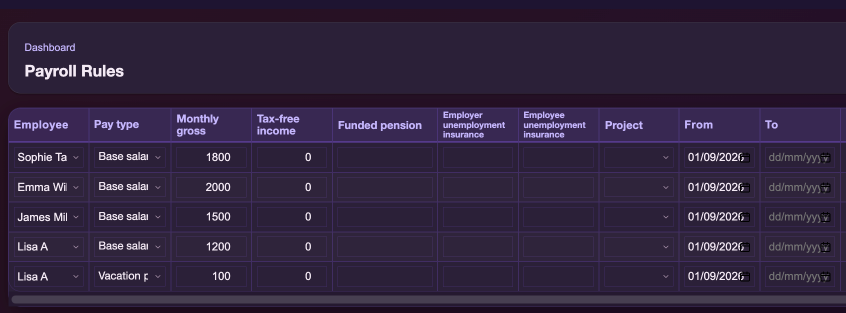
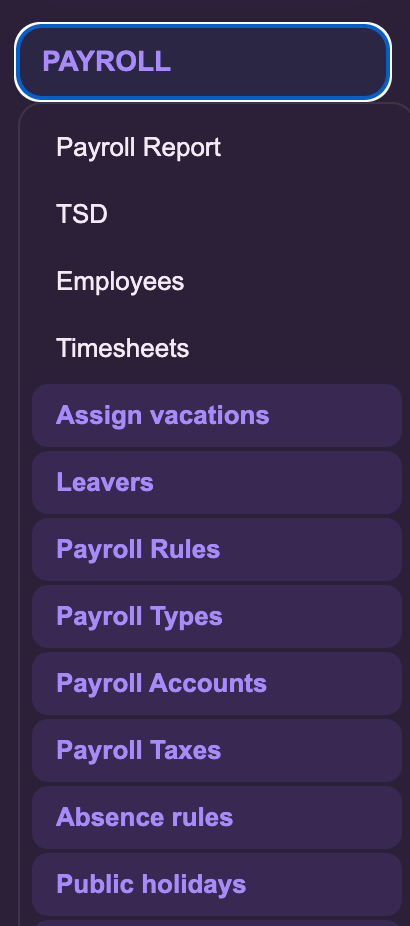
Payroll Rules
Defines how each employee is paid. An employee needs at least one Payroll Rules record before they can appear in a payrun.
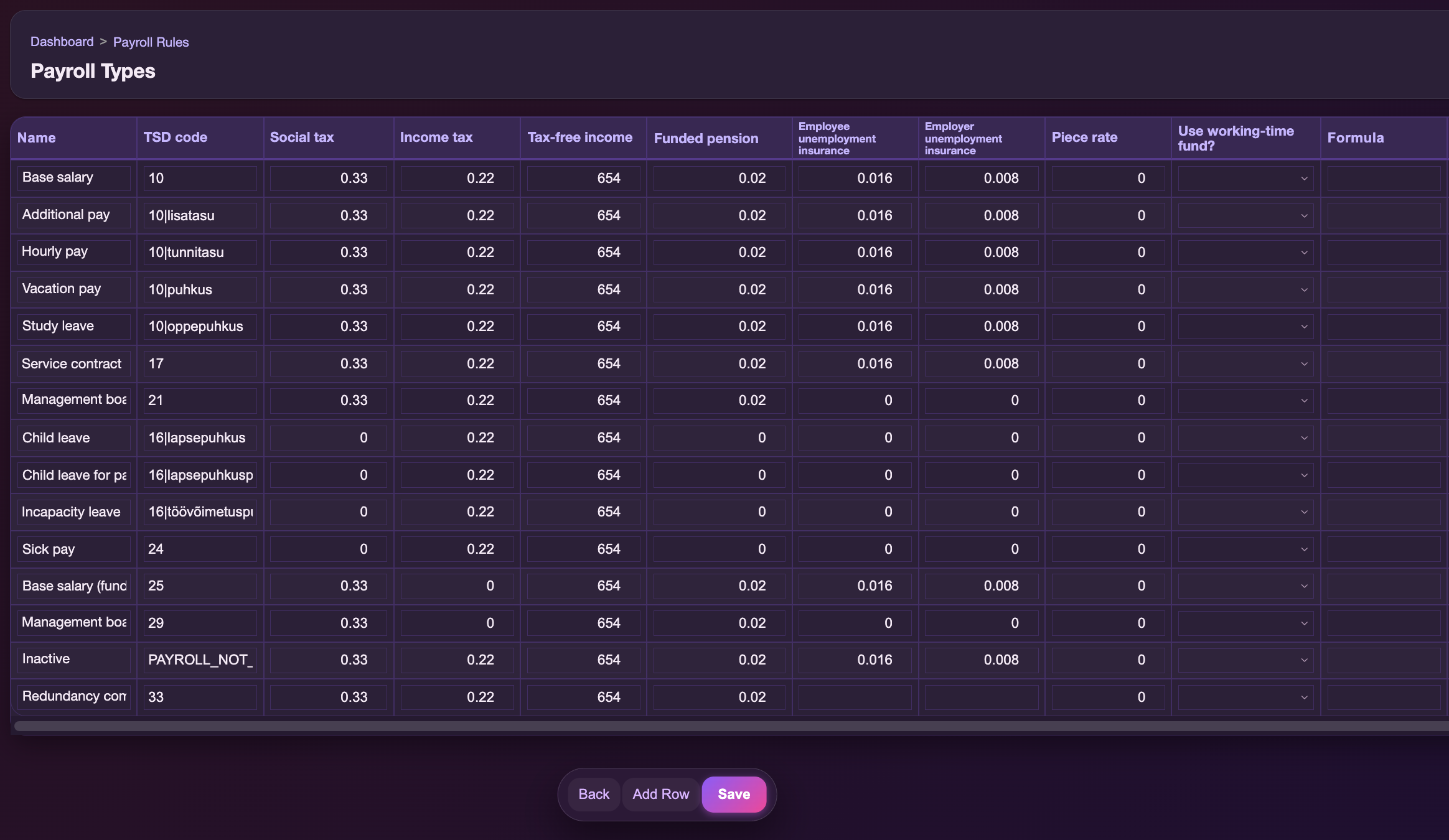
Payroll Types
Defines the pay types used in payroll, such as base salary, hourly pay and bonuses.
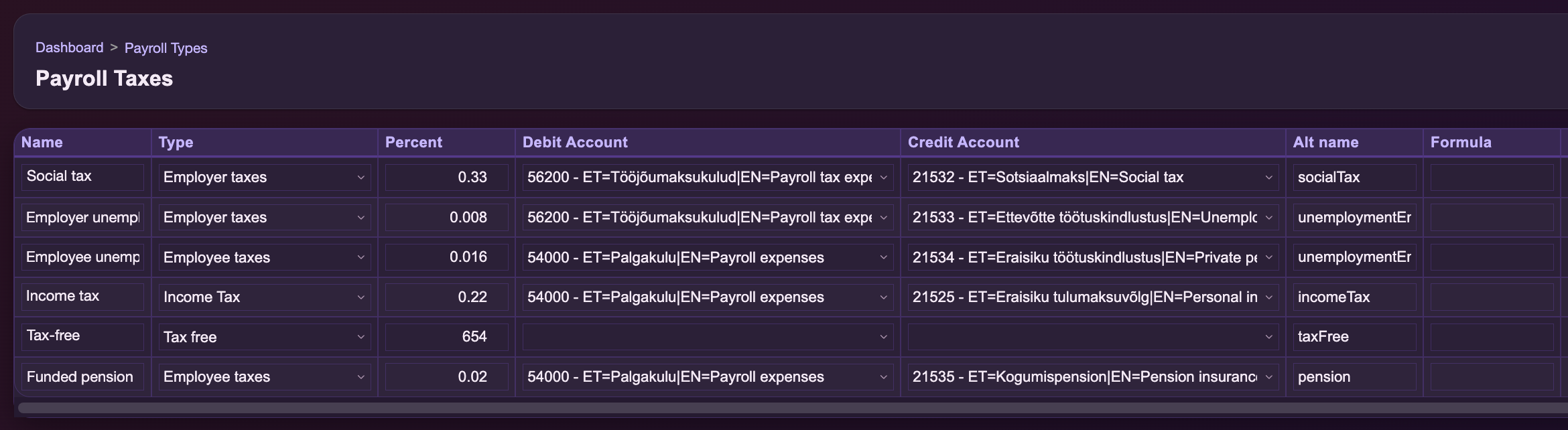
Payroll Taxes
Defines the taxes used in payroll and how they are posted.
Payroll Accounts
Controls which accounting accounts payroll postings use.
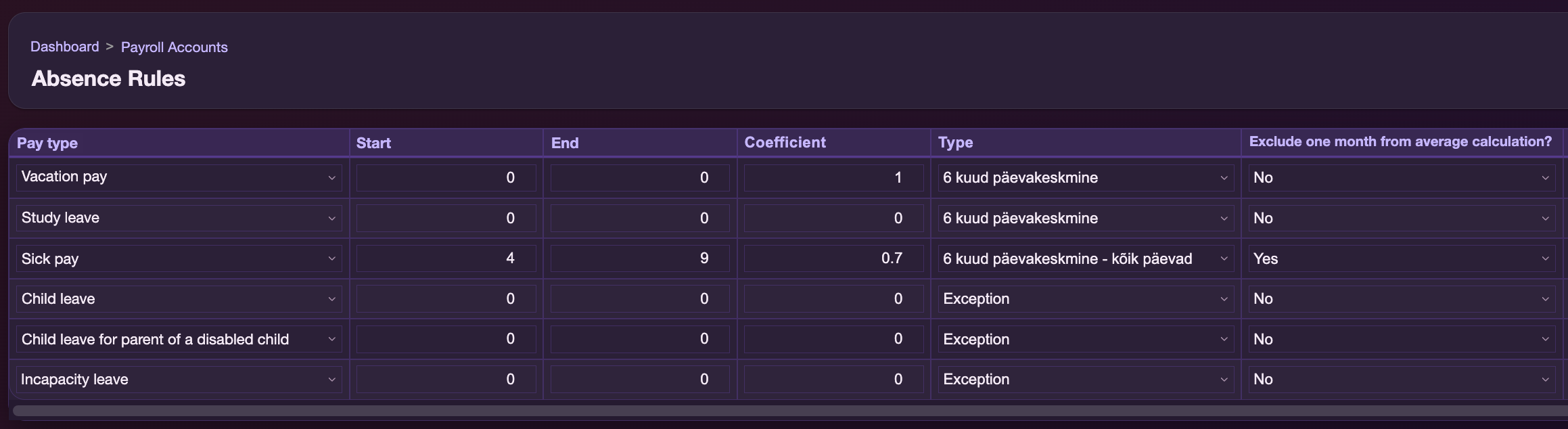
Absence Rules
Defines how average pay is calculated for absence-related pay types.
Additional settings
Public holidays
Used when working-day calculations need to exclude public holidays.
Nominal working hours per month
Used by hourly pay types that need the standard working hours for a calendar month.
Opening Balances
Used when an employee does not yet have enough payroll history for calculations that depend on earlier earnings.
Payroll tax exceptions Advanced
An advanced setting for organisation- or employee-specific tax exceptions.
Set up an employee’s pay
Every employee you want to include in a payrun needs at least one Payroll Rules record.
12345
1
Step 1: Select the employee
Choose the employee you are setting up.
2
Step 2: Choose the pay type
Choose the pay type that describes how this part of the employee’s pay should be calculated.
Available pay types
Base salary
Additional pay
Hourly pay
Vacation pay
Study leave
Service contract pay
Management board member pay
Child leave
Child leave for parent of a disabled child
Incapacity leave
Sick pay
Base salary (funded pension)
Management board member pay (funded pension)
Redundancy compensation
Inactive
Choose the pay type that matches the employee’s pay arrangement. If the employee receives more than one type of pay, you can add another Payroll Rules row.
3
Step 3: Enter the gross amount
Add the employee’s gross monthly salary or rate. For an employee paid entirely from time entries, this can be 0.
4
Step 4: Set the start date
Use From to choose when this payroll rule becomes active.
5
Step 5: Set the end date if needed
Use To only when the rule should stop on a specific date. Leave it empty for an ongoing rule.
6
Step 6: Add another rule if needed
An employee can have more than one payroll rule if different pay types apply, for example a base salary together with an additional pay type.
Set up pay types
Use Payroll Types to define the different types of pay your organisation uses, such as base salary, additional pay, hourly pay, vacation pay, or sick pay. Each pay type defines how that type of pay is handled in payroll.
Review payroll taxes
Use Payroll Taxes to review the taxes used in your payroll setup and the accounting accounts connected to them. This is mainly relevant when your organisation needs additional or customised payroll tax settings.
Set up payroll accounts
Use Payroll Accounts to define which accounting accounts payroll postings use.
This setting is relevant when payroll is posted to accounting.
For each rule, select:
Employee: the employee the rule applies to, if the rule is employee-specific
Tax: the payroll tax or contribution
Debit Account: the account to debit
Credit Account: the account to credit
Payroll Rules: the payroll rule the account mapping applies to, if needed
You usually only need to change these settings if your payroll postings require specific accounting accounts.
Set up absence rules
Use Absence Rules to define how different paid absence types are calculated, such as vacation pay, study leave and sick pay.
Choose the pay type
Choose the absence-related pay type you want to configure.
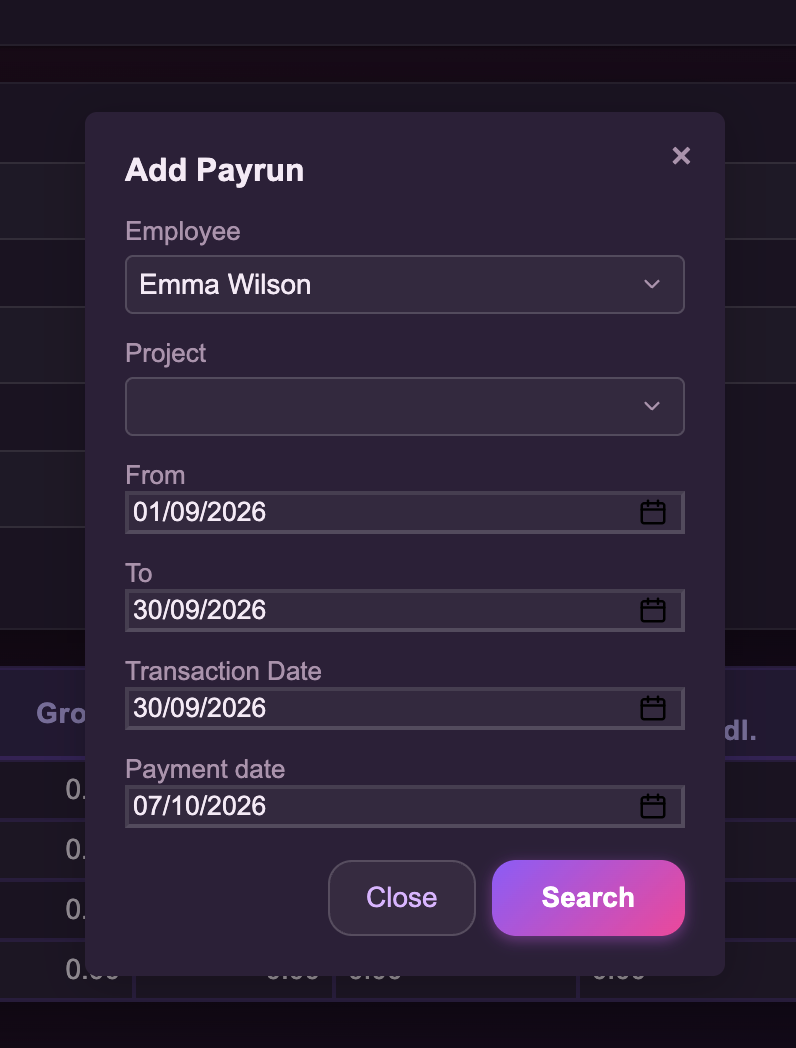
Select Emma Wilson, or leave the field empty if you want to prepare payroll for everyone.
2
From
Set the start of the payroll period to 01/09/2026.
3
To
Set the end of the payroll period to 30/09/2026.
4
Transaction Date
Set the transaction date to 30/09/2026.
5
Payment date
Set the payment date to 07/10/2026.
Click Search to prepare the payrun.
12345
3
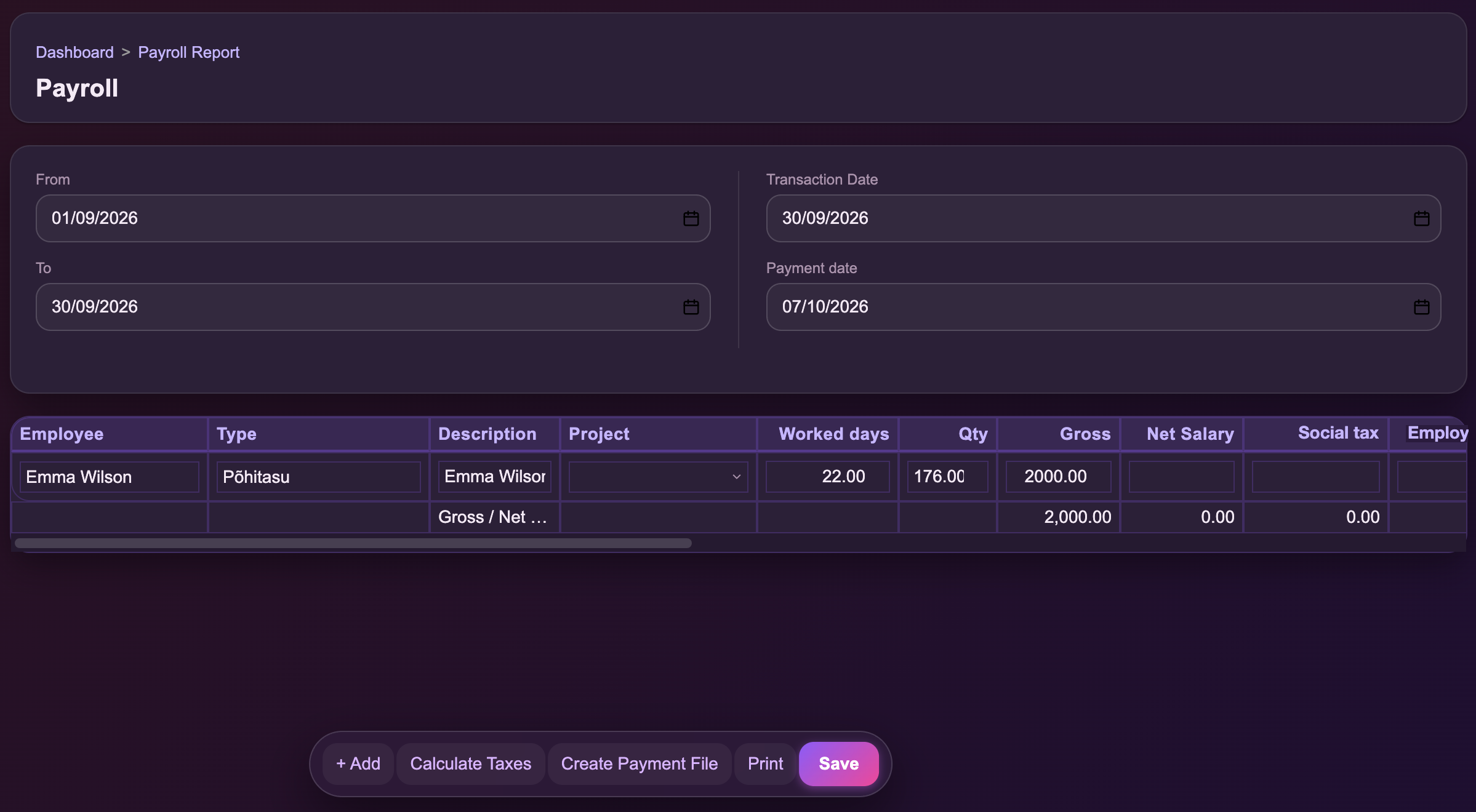
Step 3: Review the payroll
Payroll24 opens the payroll editor and prepares the employee’s payroll for the selected period.
Check the employee, pay type, worked days, quantity and gross pay before calculating taxes.
If something needs to be corrected, update it here first.
DetailBefore calculation: net salary and tax fields have not been calculated yet.
4
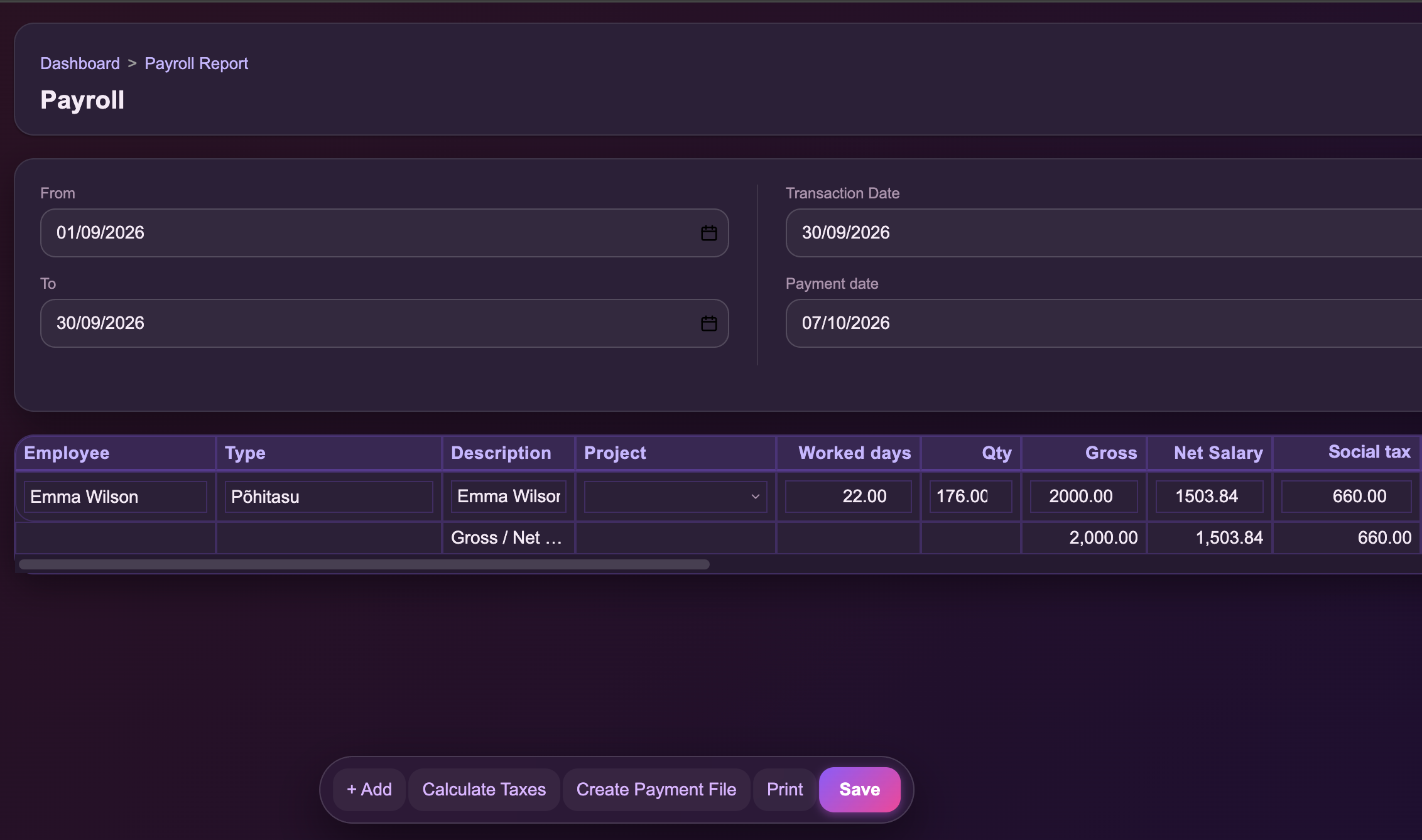
Step 4: Calculate taxes
Click Calculate Taxes.
Payroll24 recalculates the net salary and payroll taxes for the payrun.
Review the calculated amounts before saving.
DetailDetail: calculated taxes and net salary
5
Step 5: Save the payroll
When the calculated amounts look correct, click Save.
The Save button is at the bottom of the payroll editor.
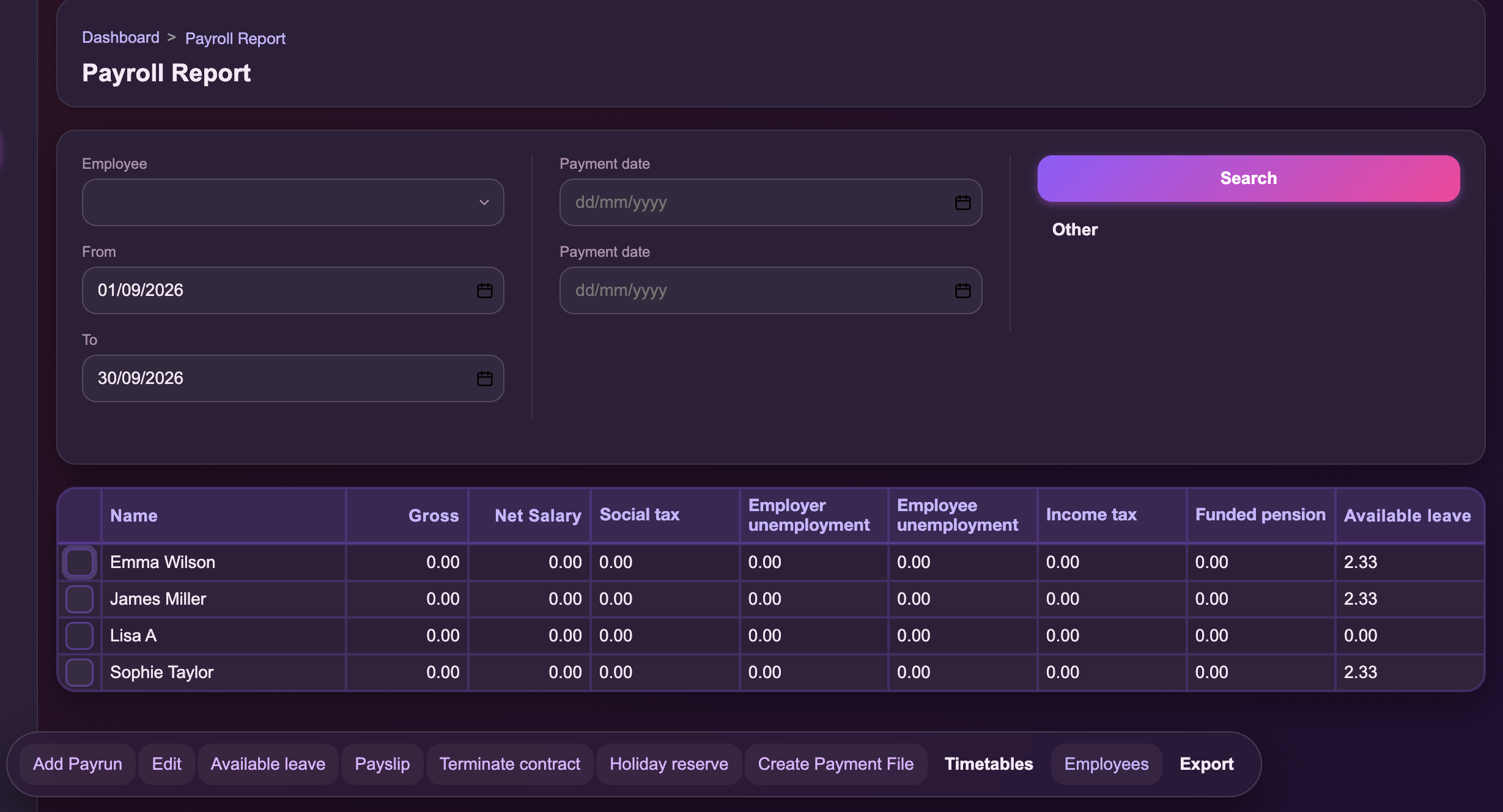
The payroll is then saved and can be viewed from Payroll Report.
Edit a saved payroll
When to use Edit
Use Edit to change a payroll you have already saved, for example to correct an amount. It works only with the employees already included in that saved payroll for that exact period. To pay an employee who isn’t in the saved payroll, create a payrun for them with Add Payrun.
Open Payroll Report.
Click Edit in the toolbar.
Choose the same period as the saved payroll.
Change the rows you need to correct.
Click Calculate Taxes.
Click Save.
Absences and leave
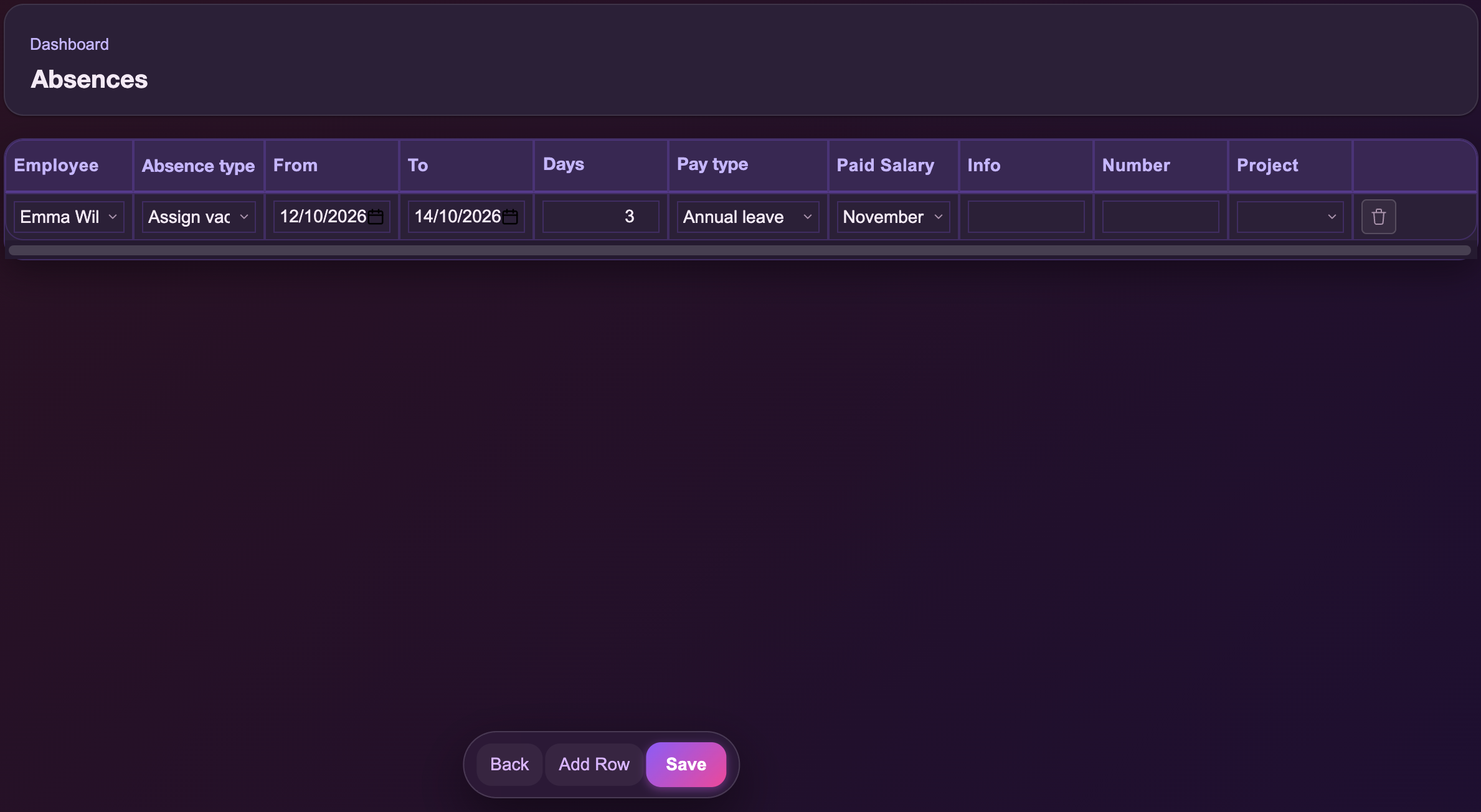
Use Assign vacations to record vacation, sick leave, study leave and other employee absences.
Once an absence is saved, Payroll24 automatically applies it to the employee’s payroll for the same period.
Go to Payroll → Assign vacations.
1
Step 1: Add the absence details
Click Add Row, then add the employee and absence details, including the absence type, dates and number of days.
Use Accrued leave for ordinary vacation from the employee’s accrued leave balance. Use other absence types for sick leave, study leave, unpaid leave and other leave.
3
From
Set the first day of the absence.
4
To
Set the last day of the absence.
5
Days
Check the number of absence days.
6
Pay type
Choose the pay type that matches the absence. It determines which payroll rules apply.
2
Step 2: Save the absence
Click Save when the absence details are complete.
Payroll24 will then use the saved absence when preparing payroll for the relevant period.
How absences affect payroll
Vacation
Vacation uses the employee’s accrued leave balance and is paid according to the employee’s average pay.
Sick leave
Sick leave follows the statutory payroll rules that apply to the employee’s country.
Study leave
Study leave uses the applicable payroll and entitlement rules.
Other leave types
Other absences follow the payroll rules linked to that leave type.
Vacation balance
Vacation balance shows how many accrued vacation days an employee has available.
If an employee already has unused vacation days from before you started tracking leave in Payroll24, add that balance so their available leave is correct.
Time entries and clock-ins
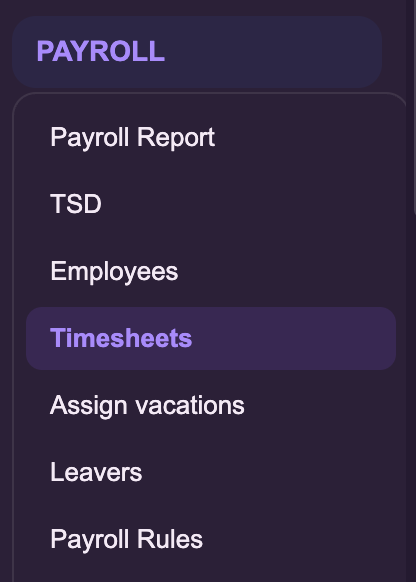
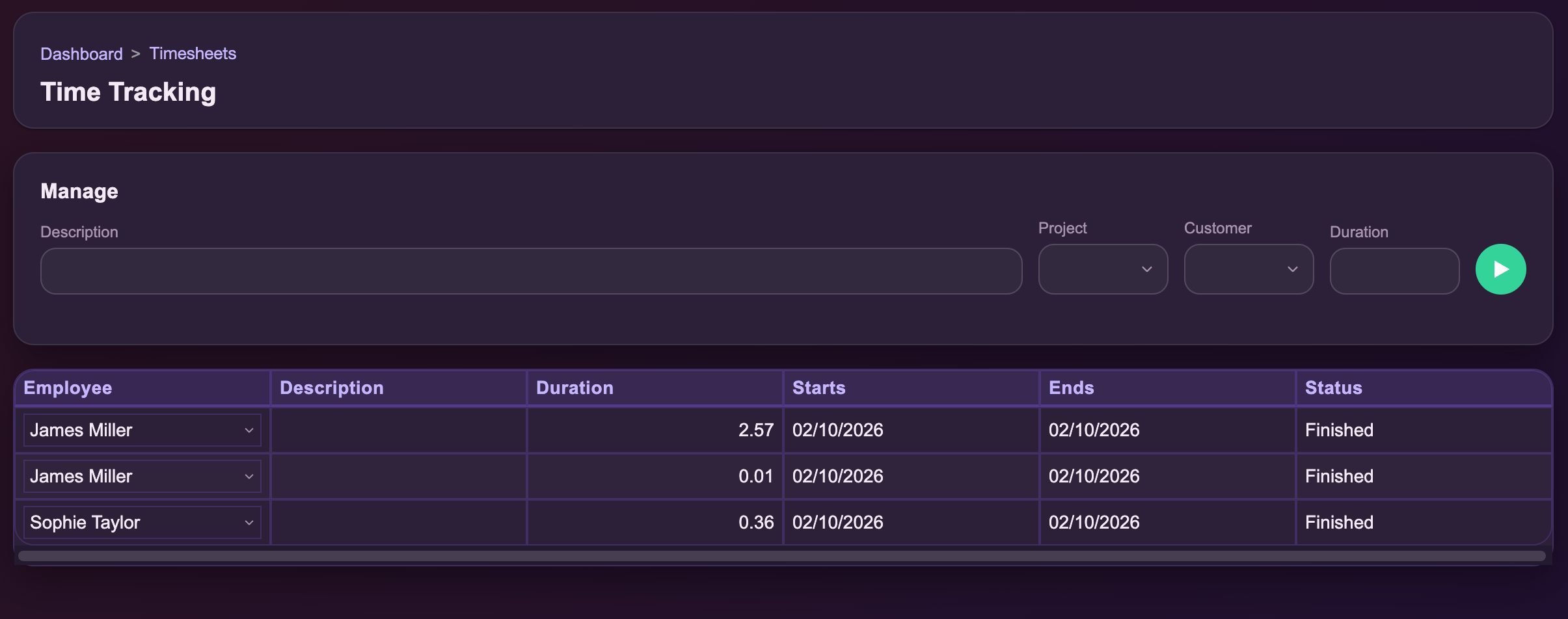
Use Timesheets to record employee working time.
Time entries that fall within the payroll period are automatically included when Payroll24 prepares the employee’s payrun. You do not need to add the same hours again manually in payroll.
1
Step 1: Open Timesheets
Go to Payroll → Timesheets.
2
Step 2: Record working time
On the Time Tracking page, add the employee’s working time.
You can use the Start/Stop flow or record time directly, depending on how your organisation tracks hours.
The project, if your organisation tracks time by project.
3
Customer
The customer, if relevant.
4
Duration
Enter the hours directly, or leave it empty and use Start.
5
Start
Starts the timer. Click again to stop it.
3
Step 3: Check the recorded entries
Recorded time appears in the table below the entry fields, outlined in the screenshot.
Before running payroll, check that the employee, duration, dates and status are correct.
4
Step 4: Run payroll normally
When you create a payrun, Payroll24 automatically collects the relevant time entries for that employee and payroll period.
Time-based pay is then added to the payroll calculation automatically. You do not need to copy the hours into the payroll editor manually.
Average pay calculations
Some absence types, such as vacation and sick leave, use the employee’s average daily pay instead of their normal salary.
Payroll24 calculates this automatically using the employee’s payroll history and the rules configured for that absence type.
For employees with enough payroll history, there is usually nothing extra to set up.
New employee with no payroll history
If an employee does not yet have payroll history, Payroll24 looks for another way to calculate their average pay.
1
1. Current salary
Payroll24 first uses the employee’s current agreed salary from Payroll Rules to calculate an estimated average.
2
2. Opening Balance
If an Opening Balance has been added, Payroll24 can use the employee’s earlier earnings and qualifying days or hours instead.
Use an Opening Balance when the employee has relevant payroll history from before you started using Payroll24. This lets the average-pay calculation reflect their earlier gross earnings and qualifying days or hours.
3
3. No salary or Opening Balance
If neither is available, Payroll24 may calculate the average as 0 and show a warning. In some cases, you may need to add a usable salary or Opening Balance before continuing.
Which rules are used?
The calculation method for each absence-related pay type is controlled by Absence Rules together with the applicable country-specific payroll rules.
Custom payroll rules Advanced
Some payroll rules can be adjusted to match your organisation’s own policies.
For example, your company may provide additional vacation days beyond the standard statutory entitlement.
1Organisation-wide
Organisation-wide rules
A custom rule can apply to everyone in the organisation.
2Employee-specific
Employee-specific rules
A different rule can be set for one employee.
When both an organisation-wide rule and an employee-specific rule exist for the same calculation, the employee-specific rule takes priority.
3Payroll24 checks the result
Statutory safeguards
If a custom rule produces a result below the standard statutory value, Payroll24 shows a warning so the setup can be reviewed.
Warnings
Warnings usually do not block the current action.
They indicate that something should be reviewed before you continue.
These messages can appear during payroll and related payroll tasks such as time tracking, imports and employee termination.
Warning
What it means
What to do
Vacation days exceeded
The employee’s vacation total is above the expected annual entitlement.
Review the employee’s leave balance and confirm the result is expected.
Study leave days exceeded
The employee has reached or exceeded the applicable study-leave limit.
Check the leave dates and entitlement. Days beyond the applicable paid limit may be unpaid.
Termination check
Payroll24 needs you to confirm a condition related to the termination.
Verify the condition shown before continuing.
Termination filing reminder
A filing or registration deadline applies to the termination.
Note the deadline and complete the required filing.
Average pay: no history
Payroll24 could not find enough payroll history or an Opening Balance, so the average may be 0.
Check that the source data matches the employees and pay types configured in Payroll24.
Employee or period problems
These usually apply to one employee or payroll period rather than the whole organisation.
Error
What to check
Average pay cannot be calculated
In some cases Payroll24 may require an Opening Balance or usable salary before continuing. Add an Opening Balance or review the employee’s Payroll Rules.
Overlapping Opening Balances
Review the Opening Balance dates and make sure only one applies to the same period.
a screenshot of the relevant payroll screen, if possible
This website uses cookies
We use cookies to ensure that we give you the best experience on our website. By clicking "Accept all" you agree to using analytical cookies. By clicking "Allow only necessary" you refuse the use of analytical cookies. You can change your cookie preferences at any time.